How to install and manage the services?
Edu Framework relies on several services to run. To install them, you have two options:
Use Docker to emulate the services
Docker Desktop
To use Docker, you need to install Docker Desktop on your machine. You can download Docker Desktop from the official website: Docker Desktop
Start Docker Desktop on your machine, then:
The compose.yaml file now includes a FrankenPHP web server that runs the application itself in Docker (see the dedicated page: The application in Docker).
To start all the services:
If you run the application on your machine with php bin/edu start, you can start only the services you need, without the web server:
To stop the services, follow these instructions:
To install and start the services, follow these instructions:
To stop the services, follow these instructions:
The command used to start the services may vary depending on your Docker version; here is an example:
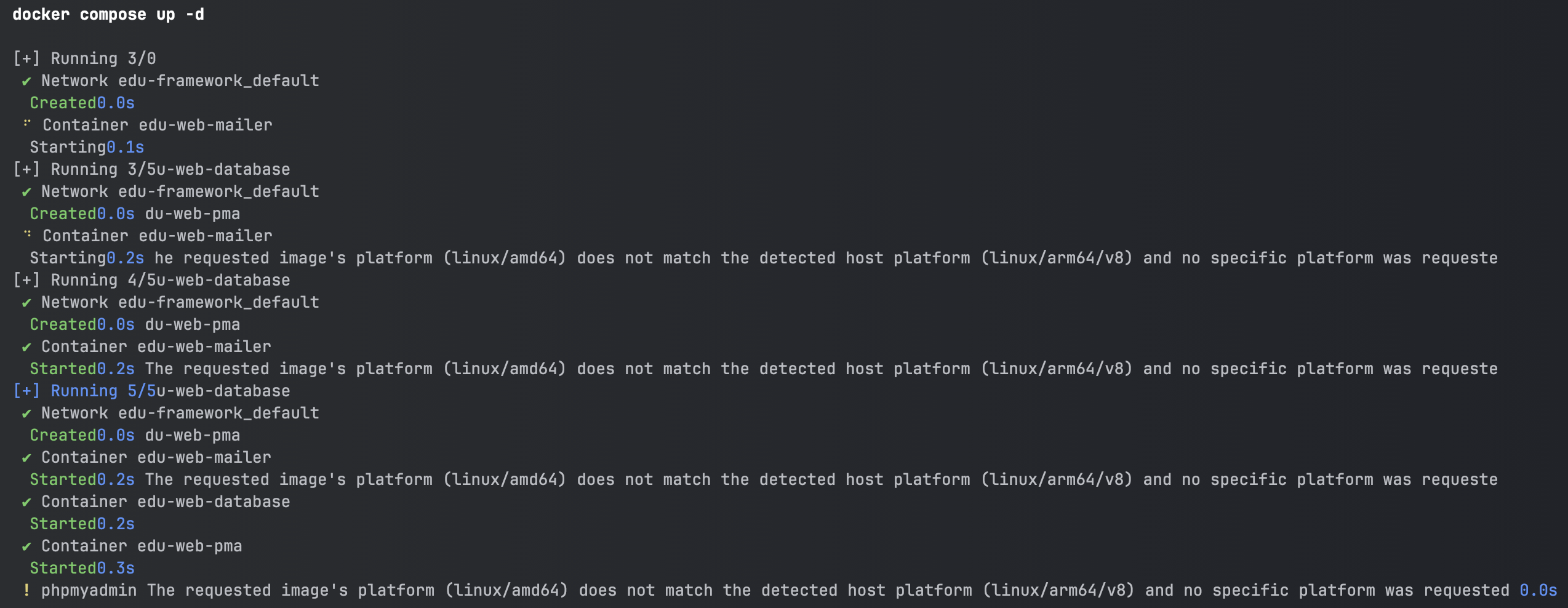
Once the services are started, you can access them through Docker Desktop or through the terminal. Here is an example:
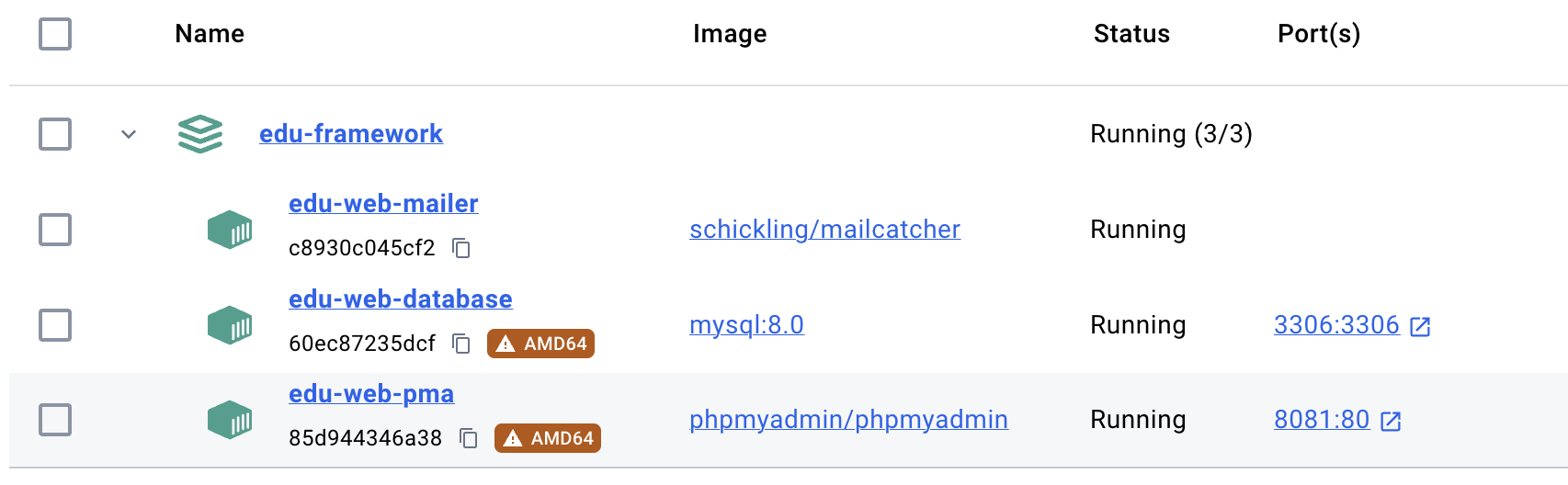
The services are ready to use. You can now start your Edu Framework application. The services are available on the following ports:
| Components | Socket (listening port) | URL | Version |
|---|---|---|---|
| :simple-frankenphp: FrankenPHP | 80 / 443 | http://127.0.0.1 | PHP 8.4 |
| MariaDB | 3306 | 127.0.0.1:3306 | latest |
| PHPMyAdmin | 8081 | http://127.0.0.1:8081 | latest |
| MailPit | 1025 (SMTP) / 8025 (UI) | http://127.0.0.1:8025 | latest |
| dbgate | 8082 | http://127.0.0.1:8082 | latest |
Configurable ports
Since version 2.7, every port published on your machine can be configured in the .env file — handy for running several projects at the same time. See Ports and running several projects side by side.
MailPit: the mail service
MailPit has replaced Mailcatcher since version v2.3.0.
It acts as an SMTP server (port 1025) to test sending emails from your application,
and provides a web interface (port 8025) to view the emails sent.
The MAILER_DSN environment variable in your .env file must point to this service:
dbgate: the database client
The dbgate service is a convenient replacement for an SQL client installed on your machine. It provides two preconfigured connections:
- MySql: server
database, userroot, passwordstudoo(databaseapp_db) - SQLite: file
var/logs/core_logs.sqlite(request logs, also available from the profiler)
Info
To access PHPMyAdmin, you can use the following credentials:
- User:
root - Password:
studoo - Default database:
app_db
You can also access the MariaDB database with an SQL client such as DBeaver or MySQL Workbench.
Install the services on your machine
The second option is to install the services directly on your machine. To make installation and configuration easier, you can use bundles such as MAMP, XAMPP...
To install the services on your machine, you can install the following:
| Components | Compatible OS | URL | Recommendation |
|---|---|---|---|
| XAMPP | https://www.apachefriends.org/fr | ||
| MAMP | https://www.mamp.info | ||
| WAMP | https://wampserver.aviatechno.net | ||
| LAMP | https://doc.ubuntu-fr.org/lamp |
This list is not exhaustive and may change over time.
Important information
We recommend using Docker to emulate the services.
It will save you time and simplify the development process. Installing the services directly on your machine can be more complex and take longer. It also locks the versions of the installed services, which can cause compatibility problems with the versions used by the framework.